
Creative Tip: 11 Ways to Zoom in Photoshop CS4.

PhotoshopZoom.png

I was working on this week’s tip, when I got an email from Steve Laskevtich from Luminous Works with a PDF handout titled “11 Ways to Zoom in Photoshop CS4.” There are SO many ways to do the the same thing in Photoshop, that I (like I expect many of you will do) immediately set out to find ways of zooming that Steve had missed.

So let’s call this a group project. How many different ways are there to zoom in Photoshop CS4? I’ve started us off with the eleven from Steve. I’ll be contributing my own additions in the comments along with the rest of you.

Zoom #1. Choose the zoom tool.

Zoom-1.png

You can select the zoom tool from the Toolbar (where it has always been) or at the top of the screen in the Photoshop Application Bar (shown below). Click to zoom in preset increments. Hold Alt or option to zoom out. You can also draw a box with the zoom cursor and the area you surround will fill the image window.

Tip: Press and hold in one place for an animated zoom effect.

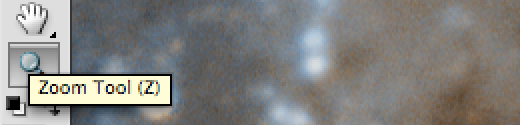
Zoom #2. Press Z to select zoom. Press-and-hold Z to make it temporary.
Zoom-4.png

With any tool active, hold down (no, not just click) the Z key to temporarily activate the Zoon tool. Release the Z key to return to the tool you were just using.

Zoom #3. Hold down Cmd/Ctrl+Spacebar to access the zoom tool.

Zoom-5.png

Tip: On the Mac, the Command+Spacebar conflicts with the default Spotlight search shortcut. You can turn the Spotlight search shortcut off in System Preferences under Keyboard & Mouse (look under Keyboard Shortcuts).

Zoom #4. Type a magnification value at the top of the screen.

Zoom-2.png

Same Application Bar as before. Choose the pop-down menu or type your an exact zoom percentage.

Zoom #5. Type a magnification at the lower left of your image.

Zoom-3.png

Zoom #6. Hold down Alt/option and use your mouse’s scroll wheel.

On a Mac multitouch trackpad or Magic Mouse, you may also use option + two finger scrolling. (I borrowed this graphic from an old tip titled Use a scroll wheel to zoom in Adobe Photoshop.)

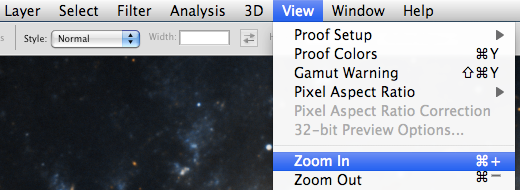
Zoom #7. Choose Zoom In or Zoom Out from the View menu.
Zoom-6.png

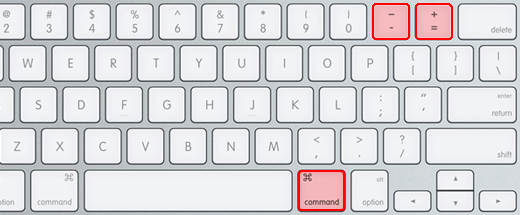
Zoom #8. Use the shortcuts Cmd/Ctrl+= or Cmd/Ctrl+–
Zoom-7.png

Although the shortcut is technically an equal sign, everyone thinks of these as plus (+) and minus (-) to zoom in and out.
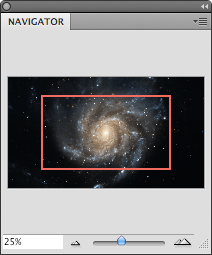
Zoom-Navigation.pngZoom #9. Navigator Panel take 1: Use the slider along the bottom of the panel.

Zoom #10. Navigator Panel take 2: Click the buttons at either end of the slider to zoom in preset increments.

Zoom #11. Navigator Panel take 3: Enter a magnification value in the field at the lower left of the panel.

Source: Steve Laskevtich is lead instructor at Luminous Works, author of Photoshop CS4 Photographer’s Handbook and is currently teaching a terrific 10-Week Lightroom Course in our online classroom.

Popularity: 5% [?]

36 Responses to “11 Ways to Zoom in Photoshop CS4.”

  1. Craig Swanson Says:

    Here is a handy zooming tip that Lesa Snider shared in her guest talk in the CreativeTechs classroom:

    Ever lose your transformation handles off the edge of an image? Just type Command/CTRL-0 (Fit on Screen) to automatically zoom out enough to see the edges of those handles again!

  2. Carol Brightbill Says:

    Another quick way to zoom in photoshop is to go to the preferences, go to the General Tab and check Zoom with Scroll wheel. Then you just have to use the mouse and not touch the keypad.

  3. Sue Impey Says:

    I always use Command + to zoom in and Command – to zoom out.

  4. j3rwin Says:

    i use #6. easy and quick.

  5. Craig Swanson Says:

    ZoomwithScroll.pngCarol, thanks for the comment about the Zoom with Scroll Wheel preference. I’ve never checked it myself. And yes, if you turn that option on, the scroll wheel (or two-finger scrolling on a trackpad) automatically zooms without the need for the Option key. I could see that becoming my favorite approach depending on the type of work I was doing.

  6. Joe Says:

    I’ve always used ALT+the mouse wheel to zoom. It’s easy and fast. There is no need to move you hands around and it’s been around since version 7 that I know of.

  7. Toby Cummings Says:

    I use all of those. I know you should probably just stick to one method, but for me, it depends on what’s most handy at the time.

  8. annalena burbridge Says:

    I absolutely love the Alt+mouse wheel, thank you.

  9. stephan chmilnitzky Says:

    I use my wheeled chair moved forward or back from my screen or use a telescope turned front and back and for blur I remove my glasses or for total improvement, I stick a photo of Martha Stewart on the screen(not that it’s an improvement but I trust she’ll know what to do.)

  10. Ed Thorsland Says:

    Variation on my accustomed device (Command/control, Space bar, Click) is, while holding down command and space bar, drag a rectangle around specific area, thereby zooming that one area out to full frame.

  11. Ben Says:

    To zoom out and zoom in quickly on another part of the image, press and hold H to get the Hand tool, clic and hold the mouse until you zoom out to see the whole image, drag on another part of the image and let go !
    A bit technical, but so cool !
    (Works in InDesign too where the Navigator panel is gone ! And maybe Illustrator…)

  12. somerset Says:

    double click zoom tool icon to zoom to 100%
    ctrl/cmd 1 does the same
    ctrl/cmd alt 0 as well
    double click hand tool icon to fit image to window
    ctrl/cmd 0 does the same
    using the zoom tool, click and drag a box to fit that area to window

  13. Steve Laskevitch Says:

    Well, Somerset, very well done. I didn’t count your shortcuts in my intitial tip as they get a user to only one magnification, but upon reading them, I have to agree they should count. Of your 6, I included only the last. So our total is now 16!

  14. Effie latif Says:

    I think many of users already knew one or more zooming tricks mentioned above.
    I used a kind of different zooming approach than others and work fine at least for me.
    It depends on project I am working on. I opened 2 windows with 2 different magnifications at a time. one at 100% other 300 or 400%_ this way I can see exactly when I am working on 300% or above how is looking at same size without using zoom tool back and fourth.
    You agree or not_ once you hang on to this technique you will love it.

  15. Victor Lam Says:

    Thank you Carol. I find the checked “Zoom with Scroll wheel” simply convenient.

  16. Benjamin Rama Says:

    just found your blog its nice thankx for these handy hints

    b

  17. getting rid of love handles Says:

    I appreciate the informative post you provide in your entries. I will bookmark your page and have my children visit in your blog frequently. I

  18. Vibhuti Says:

    #12 – If you have a Macbook with the multi-touch trackpad, you can use the 2 finger gesture to zoom in and out, as well as rotate by tilting your 2 fingers in the desired direction!

  19. Shirley in NJ Says:

    Craig – did you know that Adobe posted this as their daily hint on FaceBook?

  20. Steve Says:

    It’s funny…I just reread these comments, and I realized that I had stressed the Z key as toggle rather than the older Cmd+Spacebar. Funny how an elegant new trick eclipses the older (and still used in Illustrator and InDesign) shortcut. And I’m an old dog with Photoshop!
    So my 11 plus
    that oldie but goodie from Ed Thorsland, plus
    5 more from Somerset, plus
    the iPhone-like tip from Vibhuti =
    18!
    Oh sorry to stephan chmilnitzky for not counting those fabulous analog methods.

  21. Brett Archibald Says:

    It might also be worth mentioning the differences between Cmd.– / Cmd.+ versus Cmd.Alt.– / Cmd.Alt.+ those differences being that the former zooms in and out whilst adjusting the window size to fit, whereas the latter keeps your window the same size as it was.
    Very handy if you have several windows on-screen at the same time and you want to see them all and don’t want windows scaling up and covering others.

  22. how to lose love handles Says:

    Thanks for another great entry. Where else would anybody get this kind of information in such a great way of writing.

  23. lose love handles Says:

    Very useful info. I

  24. Losing Love Handles Says:

    I totally have the same opinion with you regarding this topic. Nice entry. Already bookmarked for future purposes.

  25. James Gieck Says:

    I will not argue with your endings because I think you’re right on the money! You have put together a coherent case for your opinions and now I know more about this specific topic. Gives Thanks for this intelligent post and i will come back for more.

  26. blu ray to mp4 Says:

    Thank you so much for this post, it was very insightful!

  27. hansen Says:

    I think Brett’s count too (and will be super handy for me) so it’s = 20. phew!

  28. Hortensia Zervos Says:

    [..] A little unrelated, but I really liked this webpage post [..]

  29. Paul W. Says:

    Thank you so much for the tip. I have been zooming the hard way for years. It’s one of those things you never think to look up.

  30. convert hd video Says:

    Very useful info. I

  31. Mrs. Love Handles Says:

    Great article – love handles are tough to get rid of but with the correct diet program and exercise, it can be done fairly rapidly. Took me about six months time.

  32. Werner Bedsaul Says:

    my God, i thought you had been heading to chip in with some decisive insght at the end there, not leave it with we leave it to you to choose.

  33. Steve Laskevitch Says:

    Werner: who better to choose than oneself? Some folks love their mouse and keep a hand free for a coffee cup, others never like to move their fingers away from the keyboard.

    Well, my favorite then: while using any other tool, holding (not just a tap, but holding down) the Z key, use the zoom function, then releasing to get back the tool I was using a moment before.
    This “spring loaded” tool function is for all the tools and is now in InDesign CS5 too.

  34. tonsil stones pictures Says:

    There is obviously a lot to know about this. I think you made some good points in Features too. Great Job.

  35. louis Says:

    hey,this is one of the best posts that I’ve ever seen; you may include some more ideas in the same theme. I’m still waiting for some interesting thoughts from your side in your next post.

  36. Photo Framer Says:

    Love the blog layout you have going on here! I could do with hiring you to do my website!

Leave a Reply