

The keywording of images is both a laborious task, while you’re doing it, and one that will save you tons of time later when you search for images. That’s our way of saying, “take your medicine and do your keywording.”
Here is a quick tutorial walking you through creating and importing a text file of keywords into Adobe Bridge CS3 and CS4. We also have a second tutorial for Importing Keywords into Adobe Lightroom 2.
Step 1. Organize your keyword hierarchy in a text file.
To have a robust list of keywords, you may use keywords made for you by a stock photo agency or other service (like Controlled Vocabulary) or your own. If you’d like to build (or buy) a set of keywords, it’s best if they’re in some kind of heirarchy.
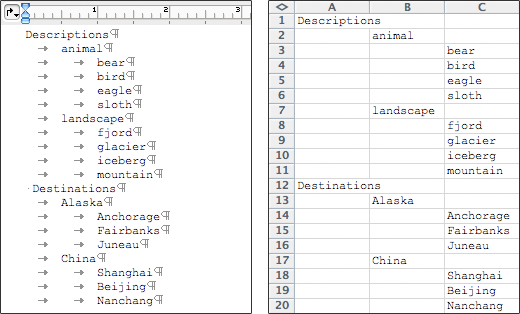
You can use the tools available in Bridge or Lightroom to create a list of keywords. For longer lists, you may create a text file to import many of your keywords at once. If you are proficient in Microsoft Excel, you may choose to use that tool to lay out a grid of keywords, then export them as a tab-delimited, plain text file which can be imported into either Bridge or Lightroom. Or bypass the middleman and compose a simple text file yourself.
Each keyword should be on its own line. Any keyword with one or more tabs before it is the “child” of the nearest keyword above it with fewer (or no) tabs before it.
Step 2. Import your keyword list into Adobe Bridge.

Once you’ve saved a keyword list as a tab-delimited text file, you can use the Bridge Metadata panel menu to load your keywords. Click on the small icon in the top right of the Keywords panel menu and choose Import…
Tip: If it’s your first set of keywords and you wish to be rid of the defaults, choose Clear and Import… Now your keywords will own the list.
You can also choose the Export… option for sharing keywords with Bridge on other computers or with Lightroom.
Step 3. Apply Keywords in Adobe Bridge.
To apply a keyword to one or more images, you should select the images, then simply click on a keyword’s checkbox. Easy.
Tip: Shift+click a keyword to automatically apply that keyword and its parent(s) in a one step.
 Source: This tip comes directly from Photoshop CS4 Photographer’s Handbook, a new book written by our friend, Steve Laskevitch. Steve is founder of Seattle’s Luminous Works training center, and is currently the 3rd most highly rated Adobe Certified Instructors worldwide! Way to go Steve!
January 21, Steve will be our guest instructor for a special suggest-a-workshop topic: Introduction to Lightroom 2. This promises to be a great session. Join us in Seattle or online with our unique hybrid workshop/webinar format.