
Creative Tip: Use the Photoshop Eyedropper Anywhere!

Eyedropper-Drag.pngI love uncovering basic tricks I should’ve already known. This is a great one that will save me time almost every day.

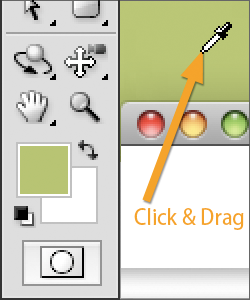
Need to match a color from a web page or something else while working in Photoshop? Just click with the eyedropper tool somewhere in your Photoshop file, and drag the cursor off to sample colors from anything visible on your screen.

That’s it!

This eyedropper trick has apparently worked since Photoshop 7. Wish I’d known that a few years and a couple thousand screenshots ago!

Popularity: 2% [?]

16 Responses to “Use the Photoshop Eyedropper Anywhere!”

  1. Sabo Says:

    Simply amazing!!! you’ll save many hours of all designers around the world, they’ll use their computers less hours, energy consumption will be reduced and our kids will have a healthier planet to live. Do you realize the impact of your post!!!?

  2. Craig Swanson Says:

    Ha! While I do’t think this is going to save the planet, Sabo, this trick is certainly going to save me a couple of minutes every week. :)

  3. Sabo Says:

    Maybe I got shock by the magnificent simplycity of the trick and pump up a little bit my reaction, anyway it’s great tip

  4. paul Says:

    Awesome! No more grabbing a screenshot and pasting it into PS just to sample a color. Thanks!

  5. Jason B Says:

    yeah I’ve been making zillions of screenshots also… this is a lovely tip!

  6. Brad C Says:

    I feel kinda stupid not knowing that before now. Thanks for sharing that’s going to save a ton of time.

  7. Alex Says:

    That is useful. All this time I’ve been using Apple’s DigitalColor Meter to read the 8-bit values & manually entering them into PS’s color palette.

  8. Rubén Says:

    May i be the only one that don´t undesrstand this trick? I can, as alway, sample a color with the eyedropper anywhere within the document but if i point elsewhere outside the document window (i.e. a webpage) nothing happens, i only achieve to select that window… what i am missing?

  9. Craig Swanson Says:

    Rubén, the trick is to click inside a Photoshop document with your eyedropper and then, while still holding down the mouse button, dragging that eyedropper to sample colors outside the document window. Don’t click elsewhere, make sure to click in the Photoshop window and then drag out onto the rest of your screen.

  10. David Mead Says:

    I first came across this when a friend was using Flash. I’ve been using it in Fireworks ever since. Great tip.

  11. Rubén Says:

    hahaha it´s perfect! i didn´t realize about the fist step: to click on the document itself and then drag to anywhere. in fact it´s going to save me lots of screenshots. thanks guys!

  12. Bron Says:

    Awesome, thanks! I knew I’d done it before, but couldn’t for the life of me remember how it had happened, so thanks for that, such a huge time saver!

  13. Jason Pang Says:

    Wow, I wish I knew that earlier!

  14. Song In A Says:

    amazing~thanks ^-^
    but I do not know how much applies to working~

  15. Chris Says:

    Okay, so I knew this several times over the years but then forget about it! This time I’m going to use it over and over until it becomes second nature, it sure would save all those screenshots filling up my drive! Thanks for the useful tip!

  16. Roderick Says:

    Thanks, easiest solution yet!

Leave a Reply